

Billing & Tokens
Tokens are the currency for scans in your workspace. You can purchase token packages via PayPal. Your current balance is shown in the header and on the dashboard. The purchase history shows status, date and invoice; PDF invoices are generated automatically. A usage overview with charts and forecasts helps you keep an eye on consumption and planning. Admin users find all the areas mentioned in the workspace administration under Billing or related menu items.
Token balance in the header and on the dashboard
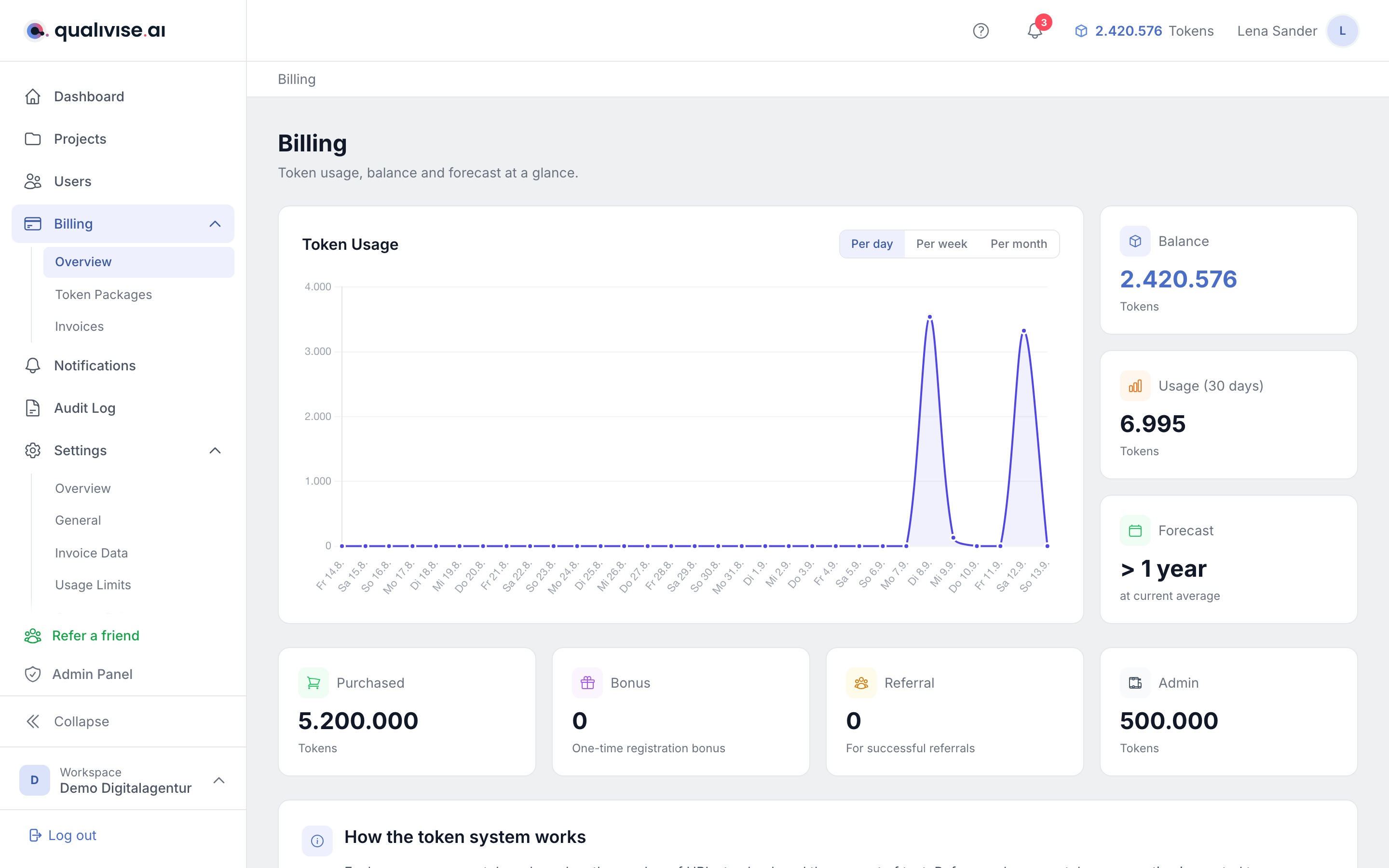
- Header - the current balance is usually permanently visible without switching to a sub-section.
- Dashboard - additional cards or widgets summarise balance and short info.
- Refresh - after a successful purchase the displayed balance updates as soon as the credit is booked.
Billing & token-balance overview
- Token balance - shows your available balance for upcoming scans.
- Quick access - common actions such as purchase or switching to the detail views.
- Context - the balance refers to the entire workspace, not just a single project.
Token packages and payment (PayPal)
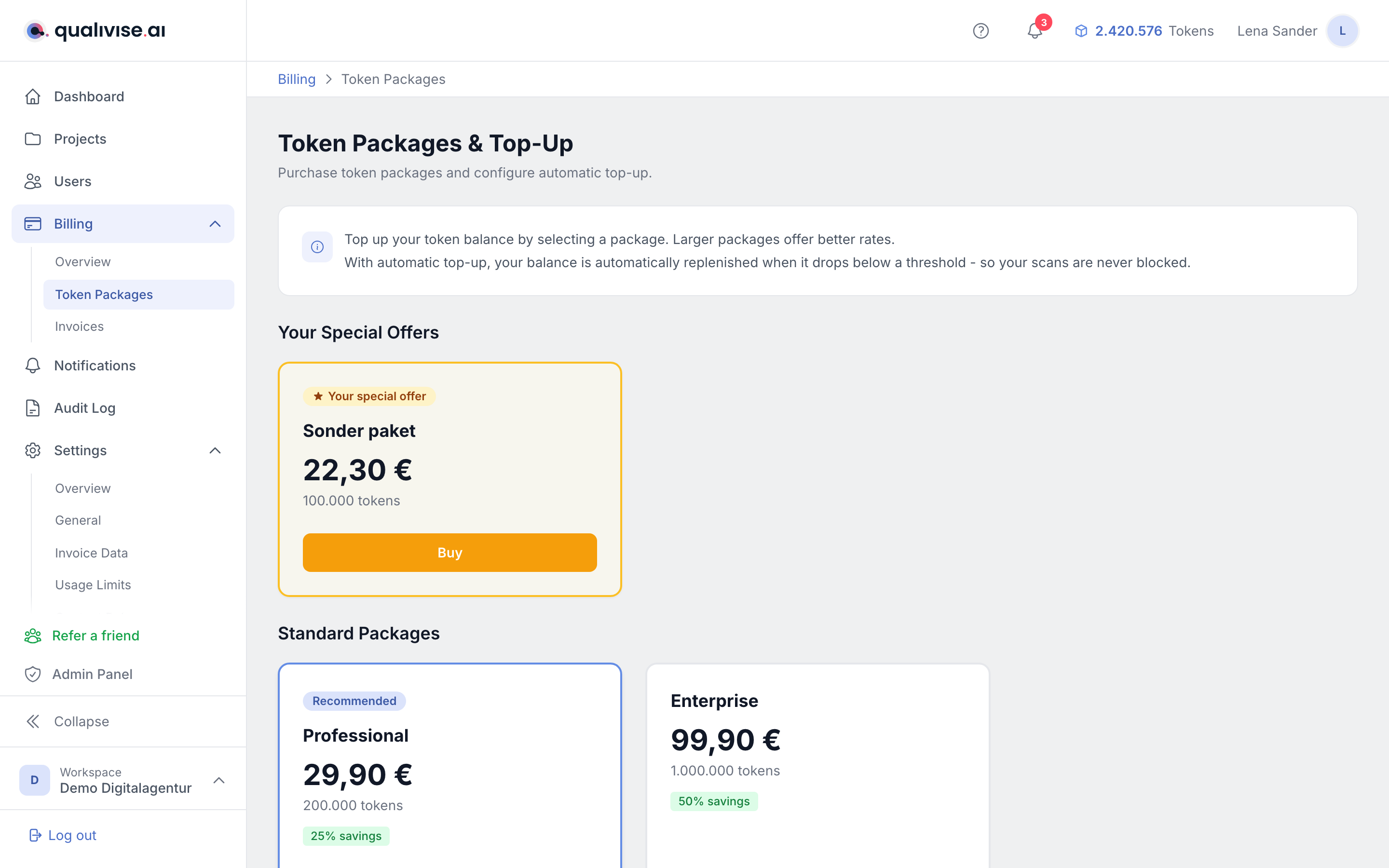
- Package selection - choose a suitable token package for your needs.
- PayPal - the purchase is processed via PayPal; after successful payment the tokens are credited.
- Transparency - before purchase you see the key conditions of the selected package.
Purchase history, status and invoices
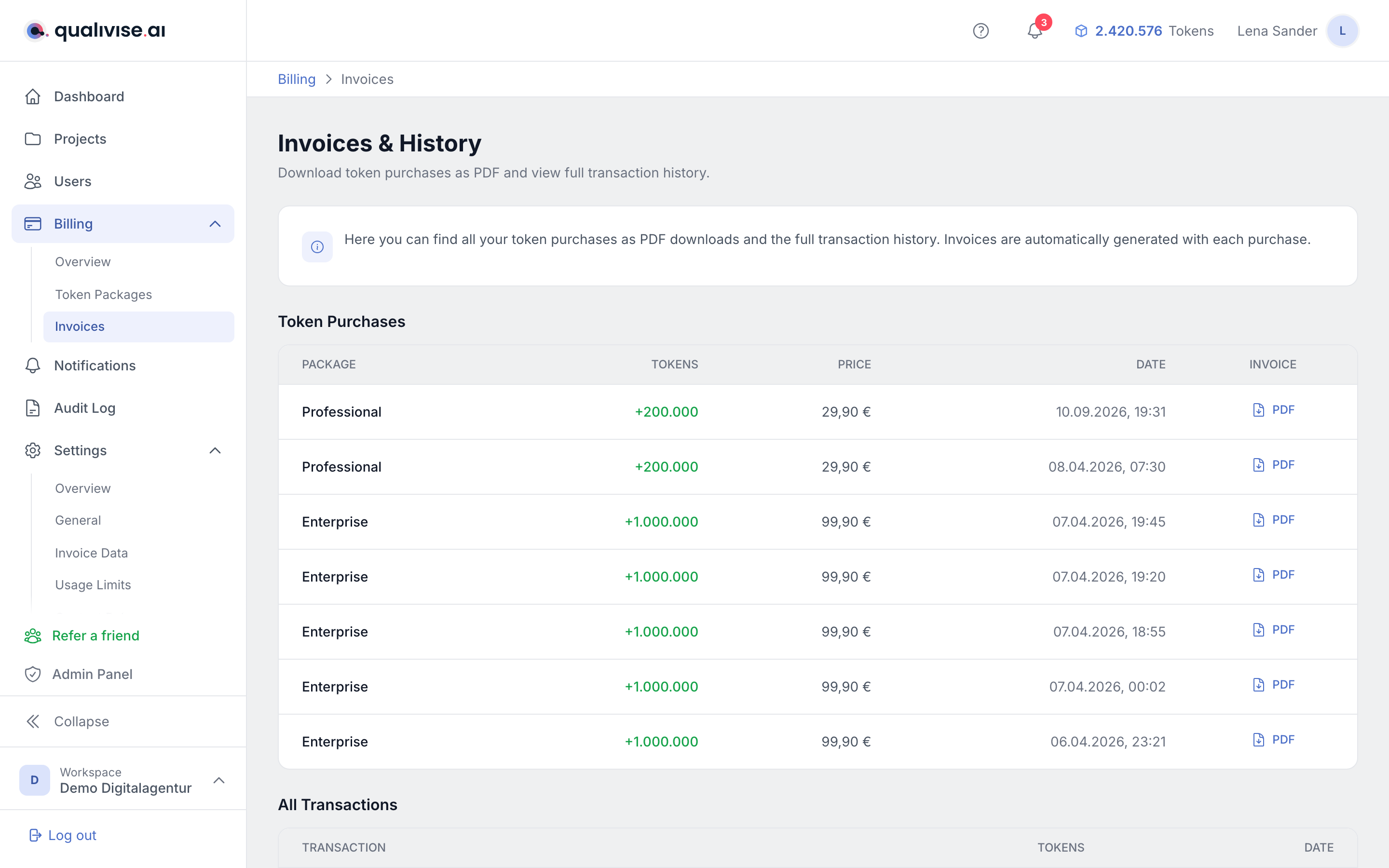
- Status - each entry shows whether the payment is complete or still pending.
- Date - you can trace purchases chronologically.
- Invoice - link or download of the associated PDF invoice if available.
- Automatic PDFs - invoices are generated automatically and available in the history.
Usage overview, charts and forecast
- History - charts show token consumption over time.
- Classification - you can identify peaks and quiet phases of your usage.
- Forecast - a simple preview supports planning for when a top-up might make sense.
Automatic top-up (auto top-up)
With automatic top-up, qualivise.ai automatically buys a token package as soon as your balance drops below a defined threshold. This avoids interruptions in scheduled or manual scans.
Configuration
You'll find the settings under Billing > Token packages in the "Automatic top-up" section:

- Activation - turn automatic top-up on or off via the toggle switch. When disabled the function stops immediately.
- Threshold (tokens) - define the token balance at which top-up is triggered (e.g. 10,000 tokens).
- Package to top up - select the token package that should be purchased automatically. All active packages plus your workspace's special packages are available.
- Payment method - currently "purchase on invoice" is available (tokens immediately, invoice by email).
Advanced settings
- Max. top-ups per month - limits the number of automatic top-ups per calendar month (1-10).
- Minimum interval (cooldown) - period between two automatic top-ups (15 minutes to 24 hours).
When does automatic top-up trigger?
- On scan start - if the balance is not sufficient for a scan, a confirmation dialog appears with package, token amount and price. After confirmation the top-up is performed and the scan starts.
- For scheduled scans - time-controlled scans trigger the top-up automatically when needed, without manual confirmation.
Important
- The invoice is generated automatically and sent by email to the stored billing address.
- Top-up only happens if the monthly maximum and the cooldown are not exceeded.
- Disable the feature at any time via the toggle - deactivation takes effect immediately.
Notes
- Plan for a buffer when many or large scans are due - low balances can delay or block scans.
- Check the invoice PDFs for tax questions; the invoice address in the workspace feeds into the issuance.
- For payment or credit questions, the status in the history and the related documents help.
- Use the usage overview together with your release or marketing calendar to explain load peaks.
- PayPal payments should be aligned with the account approved for the business - avoid private accounts.