

Scans & results
Scans run the checks for the configured URLs. Results show findings per URL, status, filters, exports and comparison views - including key metrics and bulk actions for team workflows.
Note: this page describes the scan process and result view using the spell check as an example. There are four scan types in total, each with its own help page and its own way of presenting findings:
- Spell check - AI-assisted check for spelling, grammar, typos and punctuation
- Content assessment - test content, placeholders and unreachable URLs
- Link Check - broken links, redirect chains and mixed content
- GEO Audit - how well the site is prepared for AI answer systems
Admins decide which scan types are available in a project; each scan type is configured in its own scan profile.
Start a scan
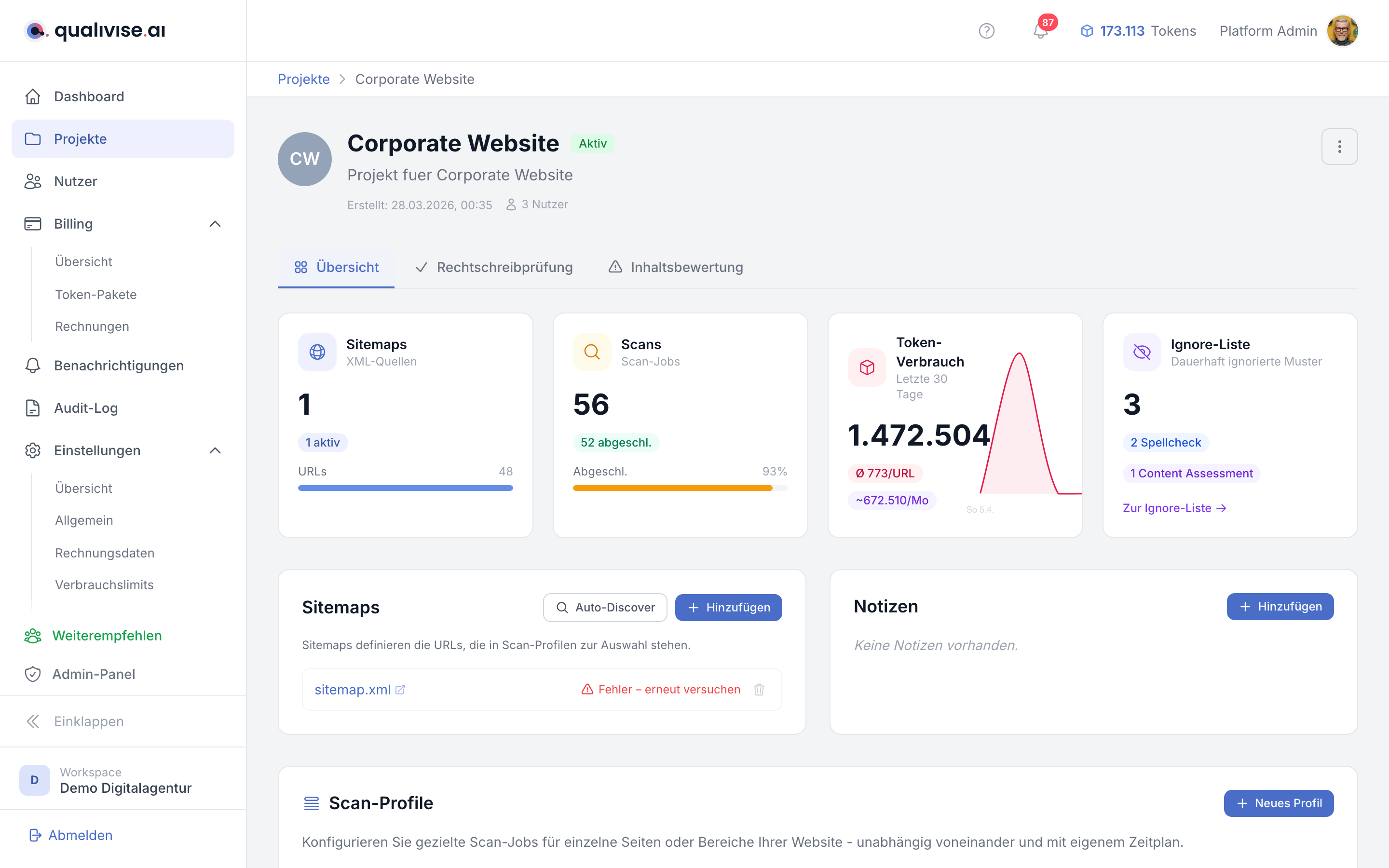
- When a scan starts, tokens are reserved up front matching the planned scope.
- Without sufficient balance the start can be blocked or limited depending on the rules.
Progress during the run
- A progress bar shows the current state (e.g. processed URLs vs. total).
- Runtime and token consumption are shown so you can follow the run.
Results per URL
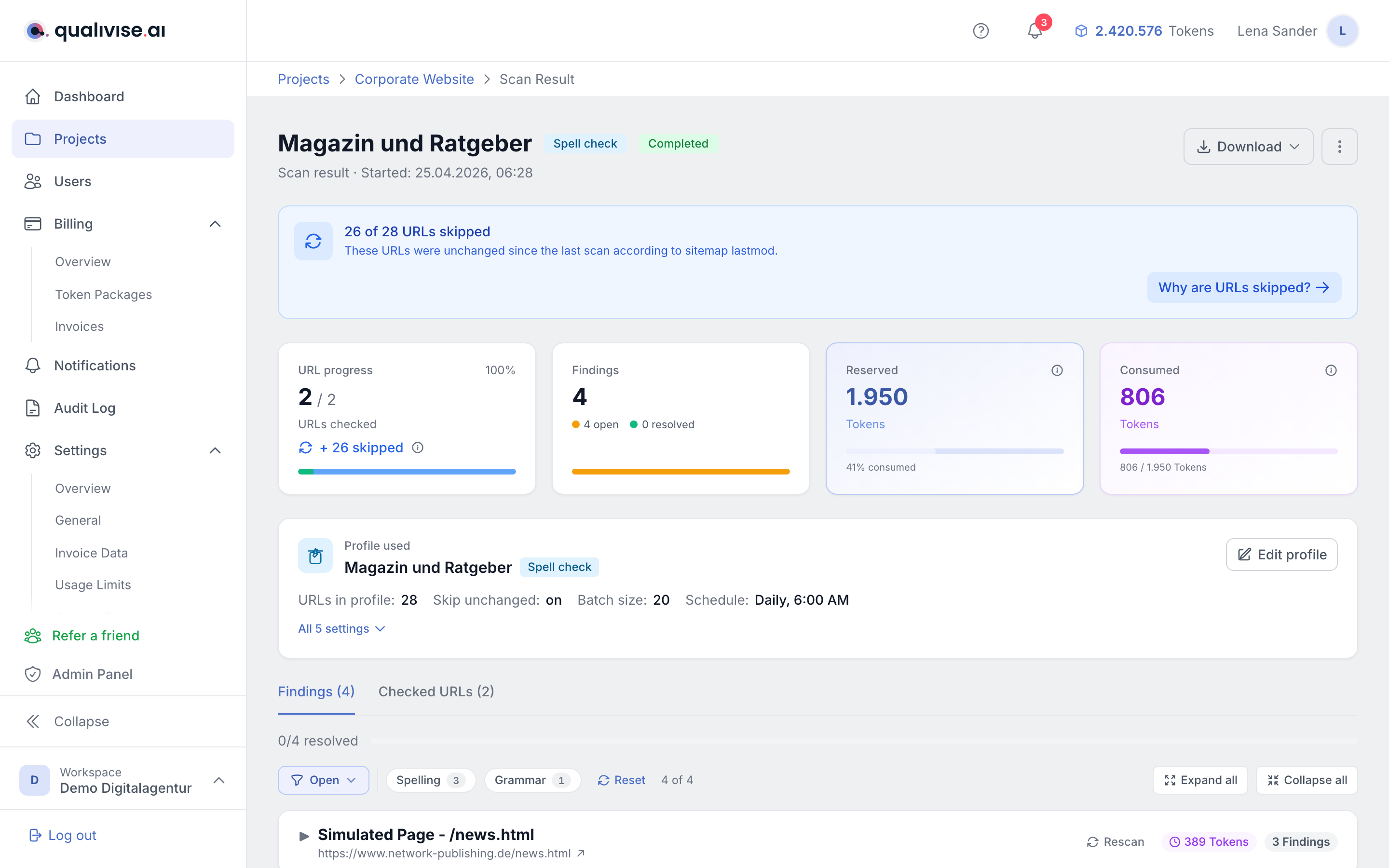
- Every URL has a result list with individual findings and context (text passage, suggestion, rule).
- Confidence score - a metric for how certain the system is about a finding (interpretation depends on rule and model).
Show on page
Every finding carries a "Show on page" link. It opens the checked URL in a new tab, jumps straight to the reported text passage and highlights it. That saves you from hunting through long pages when you want to apply the correction in your CMS.
The link is available for spellcheck and content assessment findings, provided the checked URL is known.
Good to know:
- If the browser cannot find the passage, it simply opens the page at the top. This mainly happens when the page has changed since the scan.
- Jumping to a text passage works in Chrome and Edge from version 89, Firefox from 131 and Safari from 18.2. Older browsers just open the page.
- The highlight colour is set by the browser: purple in Chrome, yellow in Safari, orange in Firefox.
Findings diff
- The findings diff view visualises changes between states:
- Red - removed or marked as legacy content to be corrected.
- Green - corrected or marked as the new, preferred state.
Categories and filters
- Which categories appear depends on the scan type. Across all four scan types there are 22 categories; the most important ones per scan type are:
- Spell check - Spelling, Grammar, Typo, Punctuation
- Content assessment - Suspicious URL, Suspicious content, Test page, Placeholder content, Unreachable
- Link Check - Broken link, Link timeout, Redirect chain, Insecure link, Blocked by robots.txt
- GEO Audit - AI crawler blocked, llms.txt missing, Low citability, Schema.org missing, Weak E-E-A-T, Brand gap, Technical GEO finding
- Filters narrow the list down to relevant types, severities or statuses so you can work more efficiently.
The filter summary next to the filter button shows "{filtered count} of {total count}" so you always know how many findings exist overall and how many the current filter shows.
Finding statuses
- Open - still to process or check.
- Done - processed or accepted as completed.
- Ignored - deliberately not pursued (e.g. intentional spelling).
KPI cards in the scan detail
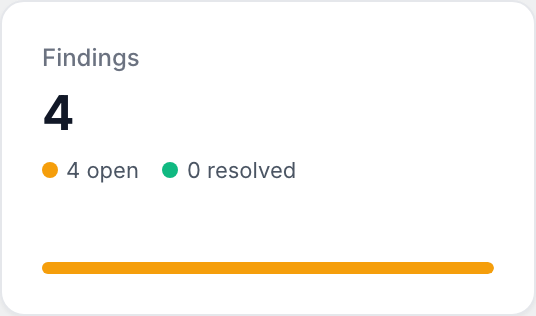
The four KPI cards at the top give you an immediate overview of the scan status:
- URL progress - shows the state as "{processed} / {planned}" with a percentage. A green bar shows checked URLs, an optional blue portion marks skipped URLs (unchanged according to the sitemap since the last scan).
- Findings - total number of findings broken down: open (amber), done (green), ignored (grey). With zero findings "Error-free" appears in green.
- Reserved - tokens reserved up front as a buffer before the scan starts. Any unused surplus is refunded after completion.
- Consumed - tokens actually consumed, with ratio relative to the reserved tokens.
Profile used

Below the key figures you can see which scan profile this run worked with. The name doubles as the page heading, with the type of check next to it.
The card starts with the four most important values; All settings expands the rest. What appears there depends on the scan type: for a GEO audit the brand, language, page count and how many platforms were checked, for a link check internal and external links, robots.txt and the link limit. Common to all types are the number of URLs, batch size, schedule and whether unchanged pages were skipped.
Edit profile takes you straight to the editor, for instance to adjust a setting after an unexpected result and check again.
Important: The card shows the settings of this run, not the profile's current state. If you change the profile later, the old report stays exactly as it came about. That is why the values here and in the editor can differ - both are correct, they are simply two points in time.
For scans that ran before this card was introduced, a note appears instead of the values. Those runs did not record their settings, and today's profile state would be a claim about something that may well have been different back then. From the next run onwards everything is complete.
If the profile has since been deleted, the settings remain readable - only the route to the editor is gone.
Ignoring findings and the ignore list
When you ignore a finding a dialog opens with multiple options:
- Ignore only this finding - marks just the selected finding as ignored.
- Ignore all identical findings - if several findings share the same pattern, you can ignore them all at once. The count is shown in the dialog.
- Add permanently to the ignore list - this option (only for Owners and Admins) adds the pattern to the project-wide ignore list. On future scans this pattern is automatically treated as ignored.
- Reason - you can optionally state why the finding is ignored (max. 140 characters).
See Ignore list for more about the ignore list.
Export and bulk actions
- CSV - tabular export for Excel, data pipelines or ticketing systems.
- PDF - readable report for sign-off or documentation.
- Bulk actions - set or edit several findings at once (depending on role).
Cancel a scan and refunds
- Runs can be cancelled if you notice an error or need to reduce load.
- For unused or refundable portions a token refund can be issued (see the current product rules).
Auto top-up when starting a scan
If your token balance isn't sufficient for a scan and you have automatic top-up configured, a confirmation dialog appears:
- Package and cost - shows the configured auto top-up package with token amount and price.
- Confirm - "Top up & start scan" automatically buys the package and starts the scan.
- Cancel - the scan is not started, no costs are incurred.
The invoice is sent automatically by email. See Billing & Tokens for more on the configuration.
Tips
- Combine filters and status so backlogs don't grow uncontrollably.
- For striking confidence values, check the source in the finding before changing content in bulk.