

User management
In user management you control who has access to your workspace. You invite team members by email and assign roles with clearly delimited permissions. The role model has four levels: owner, admin, member and read only. Admins manage billing, users and the audit log; members work with the projects assigned to them. You can remove members from the workspace when access is no longer needed.
Overview and team list
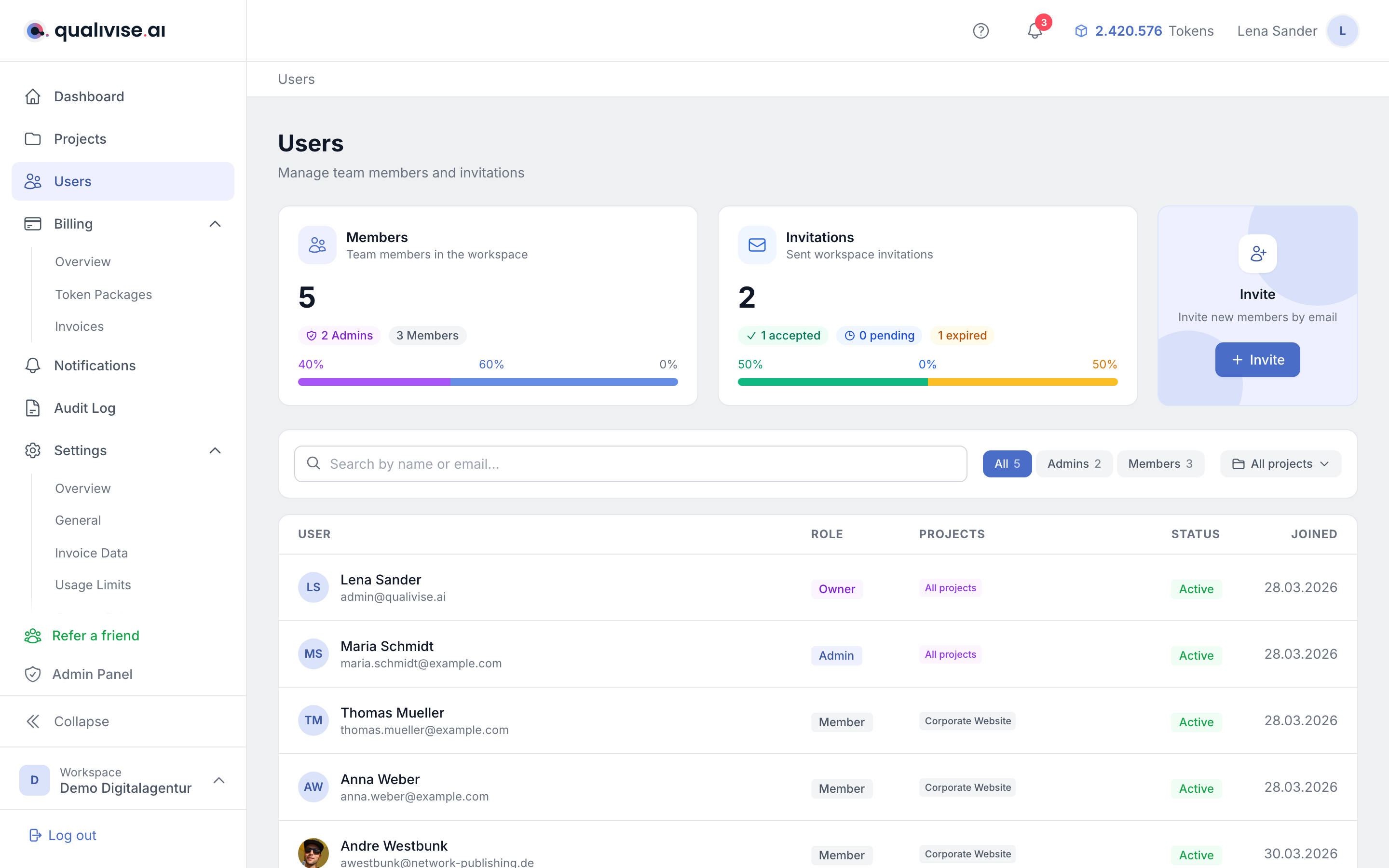
- Member metrics - one card shows the total number of members, broken down into admins, members and inactive accounts, plus the percentage distribution.
- Invitation metrics - a second card shows all sent invitations by status: accepted, pending and expired.
- Team list - shows everyone with access to the workspace including role, assigned projects, status and join date. Clicking a row opens the detail view.
- Search and filters - you search by name or email and filter the list by role (all, admins, members) as well as by a single project.
- Projects column - for owner and admin it reads "All projects", for the other roles it lists the assigned projects; from the fourth project onwards the count is summarised.
Invitations by email
- Email address - enter the business email of the person who should get access.
- Role - when inviting, Admin and Member are available; a short hint in the dialog explains both permission levels.
- Project assignment - if you choose the member role, the optional "Project access" area appears: you search the active projects, select several via checkboxes or take over the entire list with Select all projects. Selections appear as removable chips.
- Warning without selection - if project access stays empty, a hint points out that the person will see no project after joining. The assignment can be made later in the respective project.
- Automatic full access - for admins and the owner the selection is omitted: they have access to all projects anyway.
- Process - invited users receive a message with the next steps to accept. The invitation is valid for seven days.
- Resend - a new invitation to the same address replaces the pending one, for example when you want to correct the role or the project selection.
Roles in the workspace
- Owner - the highest level with access to all projects and administrative areas. The owner can neither be changed in role nor removed in user management.
- Admin - full access to billing, user management, audit log, notifications and the administrative settings of the workspace, plus automatic access to all projects.
- Member - works with projects, scan profiles and scans, but only in the projects assigned to them. No access to the administrative areas.
- Read only - sees the assigned projects and their results but cannot create or change anything. The role appears as a badge in the list but cannot be assigned in the workspace, neither when inviting nor when changing roles.
- Least-privilege principle - assign admin only where people share responsibility for billing and compliance.
Remove members
- Who may remove - only admins and the owner see the "Danger zone" area in a user's detail view.
- Limits - you cannot remove yourself, and the workspace owner cannot be removed. In both cases the interface shows an explanatory hint instead.
- End access - a confirmation prompt secures the step. Removed users lose access to the workspace and to all projects and data; the action cannot be undone.
- Data - check internal guidelines about open tasks or handovers before removing.
- Auditability - removal is a security-relevant action and may appear in the audit log.
Role changes and later adjustments
- Where - you change a role in a user's detail view under "Change role"; Administrator and Member are available.
- Limits - the area only appears for admins and only for other people's accounts. Your own role and the owner's role cannot be changed.
- Upgrade - a member can be promoted to admin and thereby gains access to all projects and the administrative areas.
- Downgrade - an admin can become a member; afterwards the individual project assignments apply again.
- Care - before a downgrade, check whether open billing or audit tasks are tied to this person.
Security and invitation practices
- Business addresses - prefer company email addresses over private mailboxes.
- Expired invitations - the metrics show expired invitations; invite the affected people again if needed.
- Least privilege - start new colleagues as members with few projects and extend permissions as needed.
Notes
- Keep the member list up to date - orphaned invitations and old accounts increase the risk of abuse.
- Clarify roles in the team so that several people don't unintentionally hold the same admin rights.
- When organisational changes happen: first appoint new admins, then close old accesses.
- Use the project filter to check who still has access before closing a project.