

Settings
Under Settings you manage your personal profile, security (password) and appearance (avatar). Your workspace data is displayed there but cannot be edited yet.
Some fields are read-only when they are managed centrally or, for compliance reasons, can only be changed via support.
The modules at a glance
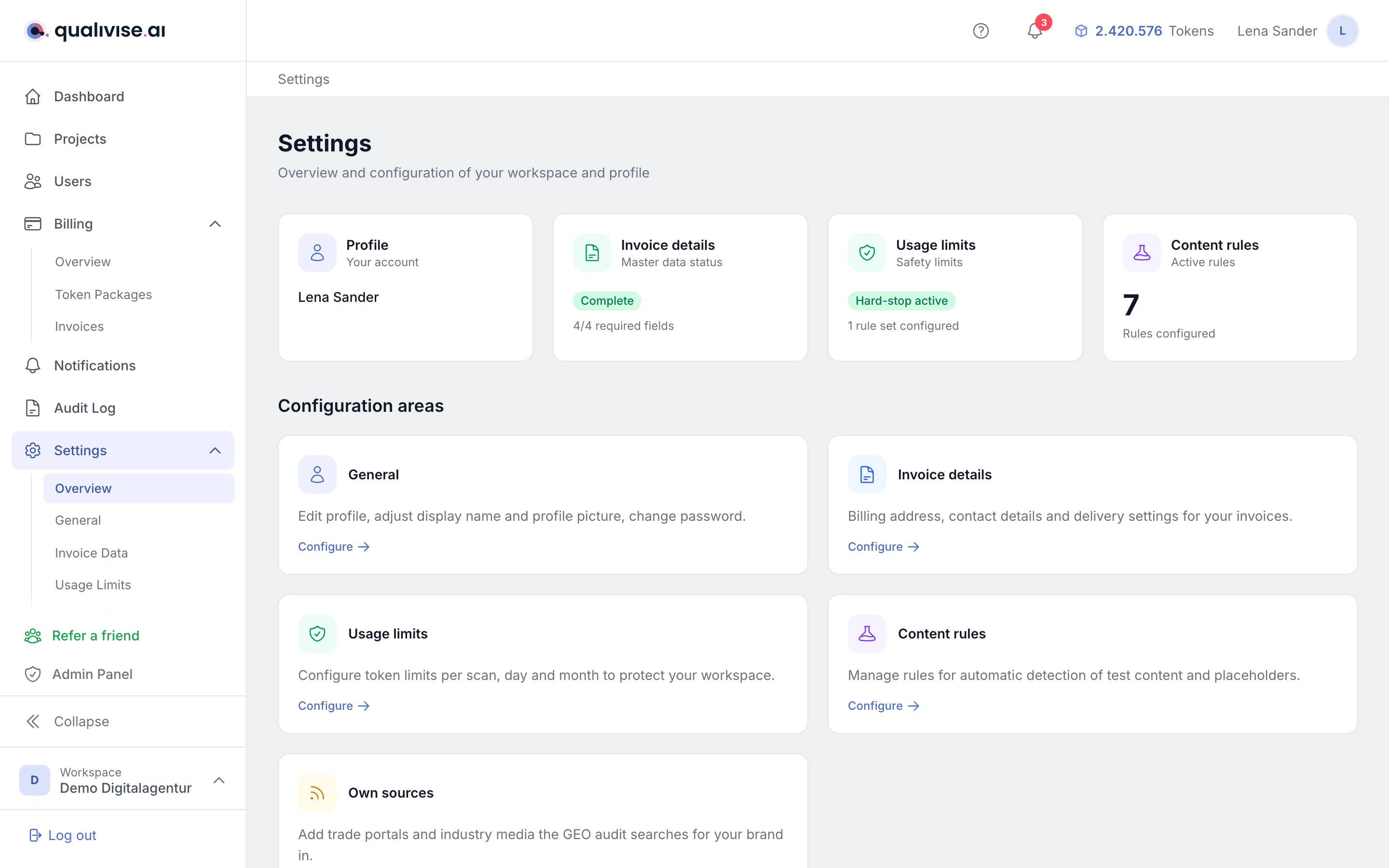
/app/settings is an overview page. From there five modules lead into the individual areas - all except General are visible to workspace admins only:
- General - edit your profile, adjust display name and profile picture, change your password; plus the display of the workspace data and the logout.
- Invoice details - billing address, contact details and delivery settings for your invoices.
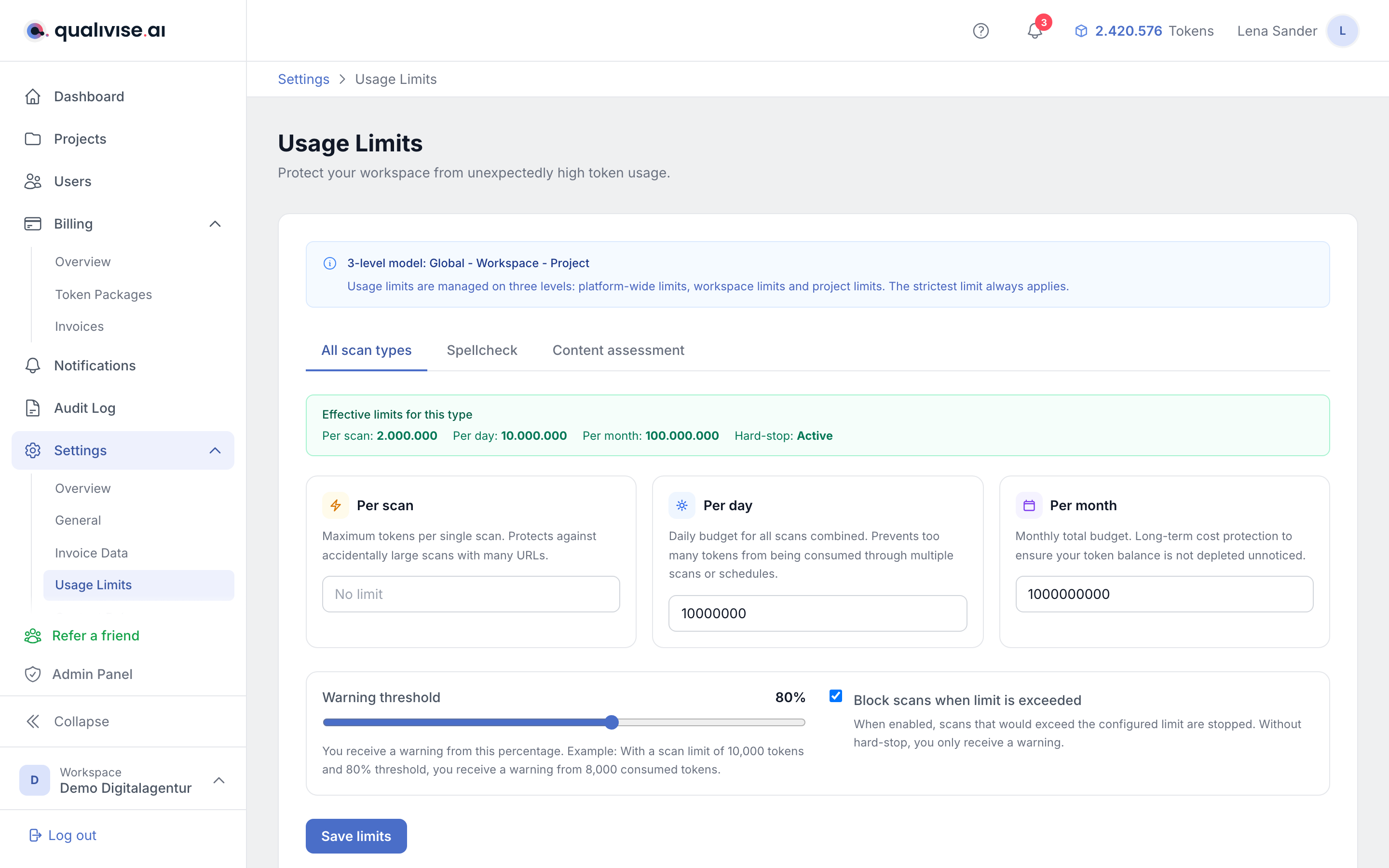
- Usage limits (guardrails) - token limits per scan, day and month to protect the workspace from unexpectedly high usage.
- Content rules - rules for the automatic detection of test content and placeholders.
- AI provider - register your own language model for GEO audits instead of the platform model.
Why the AI provider matters for GEO audits
- The AI-based GEO dimensions E-E-A-T and platform readiness require a language model. If none is available, GEO audits still run but mark those two dimensions explicitly as not assessed.
- All other GEO dimensions are calculated deterministically and are unaffected.
- The AI provider module tile only appears if the platform admin has enabled your own configuration for your workspace. Without that, the platform configuration applies.
Profile
- Display name - how you appear in the application, in lists and in messages.
- Email address - used for identification and login; a self-service change is generally not offered (exceptions only via defined support or security processes).
Why the email may be fixed
- Prevents abuse during account takeovers and keeps audit and billing data consistent.
- If your business email address changes, clarify the process with the provider or your internal admin rules.
Change password
- Enter your current password and the new password (often with a confirmation field).
- Live rules show during input whether length, special characters and other requirements are met - you see right away why a password is rejected.
Security
- Use a unique password for this service, not the same as for email or other portals.
- Store changed passwords in a password manager if your organisation allows it.
Avatar
- Formats - JPEG, PNG and WebP are supported.
- Maximum size - 5 MB per file; reduce larger files before upload.
- Cropping - a crop dialog helps you choose the section so faces or logos look good in round avatars.
Workspace name and slug
On the General page, the name and slug of your workspace are shown next to your profile as display only. Neither value can be edited here; the page points out that workspace management will follow in a later phase.
- Workspace name - readable title of your workspace (for you and your team).
- Slug - short, URL-friendly identifier of your workspace.
Log out
- The General page has its own Session area with the Log out button.
- After logging out you are redirected to the home page.
Accessibility and display
- A meaningful display name helps colleagues in comments and approvals.
- Avatars are optional; without an image initials or a placeholder are shown.
- If your name contains special characters, check the display in exports and emails as soon as those features are used.
Content rules (workspace admin)
Workspace admins find the configuration of content-assessment rules for the entire workspace under Settings > Content rules.
- Platform rules - rules predefined by the system (e.g. lorem ipsum, test-page keywords). These can be disabled individually for the workspace.
- Workspace-specific rules - create cross-project rules with your own search patterns, severities and regex support.
- Quick templates - predefined patterns for common cases such as lorem ipsum, test pages or placeholders.
Additional rules can also be created at project level that only apply to a single project. See Content assessment for more.
Notes
- Save changes using the Save button provided, if the UI doesn't save automatically.
- For avatar problems first check format and file size, then try another browser before contacting support.
- Changing the workspace name or slug is currently not offered in the UI; contact support for that.