

Audit log
The audit log records security-relevant actions in your workspace. You see what was changed, created or deleted - for example for projects, scans, profiles or users. Each entry names the actor (user, automation or system). To narrow things down there is a filter by entity type and a free-text search; for large data volumes pagination supports clear review.
Audit log overview
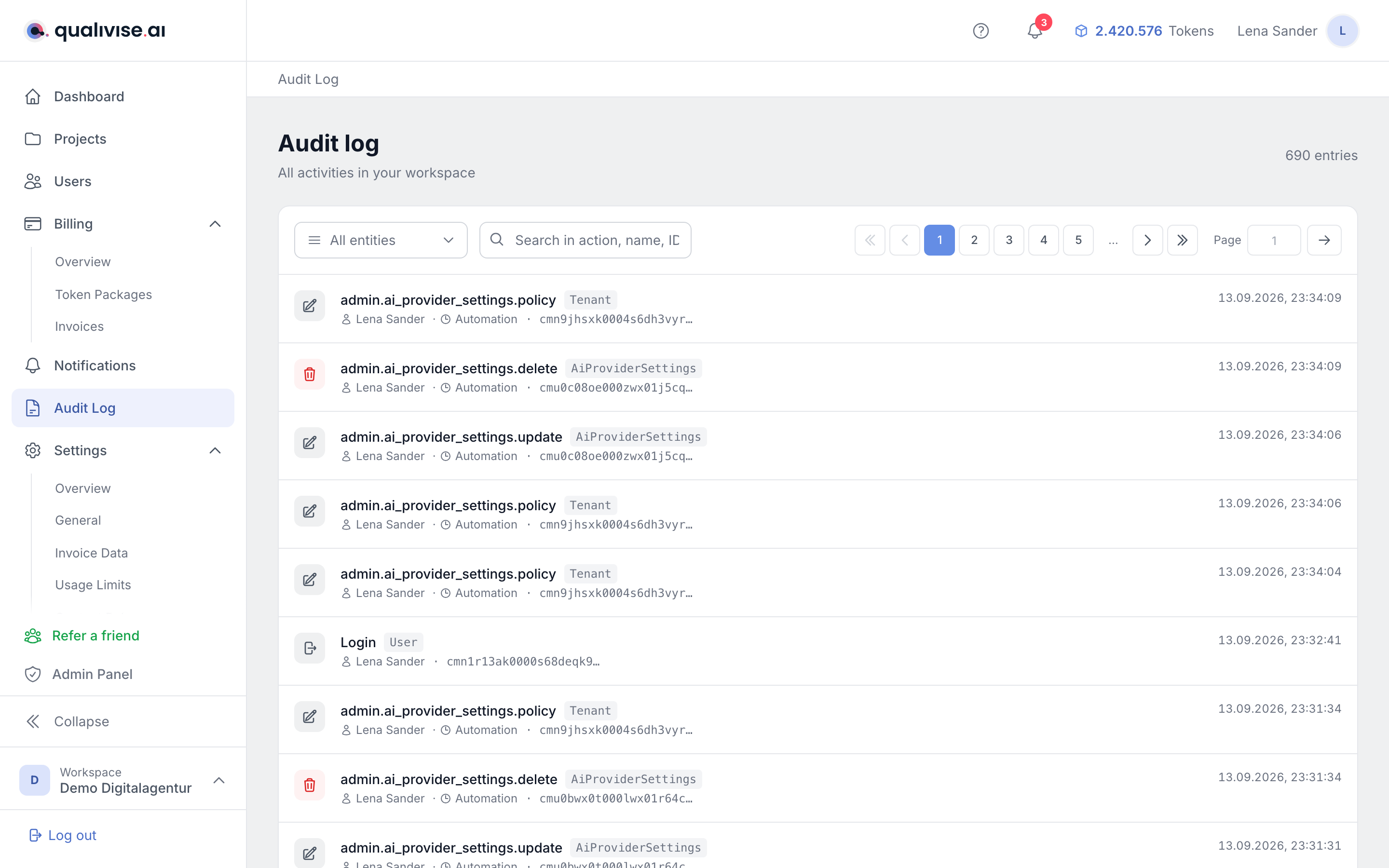
- Chronology - events appear in chronological order, the most recent first, each with a timestamp accurate to the second.
- Context - every row names the action in plain text, the affected entity type and, where available, the technical ID of the object.
- Total count - above the list you see how many entries the current filtering covers.
- Workspace-wide - the log applies to the entire workspace, not just your personal account.
Captured actions
- Projects - creation, edit, archiving, restoration and deletion of projects.
- Scans - start, completion, cancellation as well as archiving and deletion of scan runs.
- Profiles - changes to scan profiles and related settings.
- Users - registration, login, invitations, role changes and removal of members.
- Other objects - depending on usage, entries for workspace settings, notification rules and token bookings also appear.
Actor: user, automation or system
- User - actions by signed-in people appear with display name or email address.
- Automation - time-controlled runs such as scheduled scans are marked as "Automation".
- System - processes without an acting person and without scheduling run under "System".
- Attribution - this is how you distinguish manual interventions from background processes. For manually started scans, "Manual" appears next to the name.
Search and filters
The interface offers exactly two controls:
- Entity type - a select field defaulting to "All entities" narrows the list to one object type. It offers the types that actually have entries, for example
Project,ScanJob,ScanProfileorUser. - Free-text search - the search field covers action, entity type and entity ID as well as display name and email address of the acting person. This lets you narrow down to individual people even without a dedicated user filter.
- Reset filters - as soon as a filter is active, a button appears that clears all restrictions at once.
- No time range filter - the interface offers no filtering by date or period. Use the chronological order instead and page to the point in time you are looking for.
Pagination for large logs
- Page-by-page display - large histories are split into pages of 30 entries; the paging control is available above and below the list.
- Performance - you don't load all entries at once, which keeps the UI smooth.
- No export - there is no export function. The log can be downloaded neither as CSV nor as PDF.
Notes
- Use the log for security questions, internal reviews or after striking changes.
- Combine entity type and free-text search to look for incidents specifically, for example all project actions by a particular person.
- Not every small change needs to be evaluated individually - focus on sensitive permissions and data.
- Document internally how long log data must be kept for your organisation - the UI shows the current state.
- For external audits, document relevant entries by screenshot, since no export is available.