

Projects
Projects represent the websites you want to check with the platform. Each project combines name, URL and an optional description and is the top-level entity for sitemaps, scan profiles and all resulting scans.
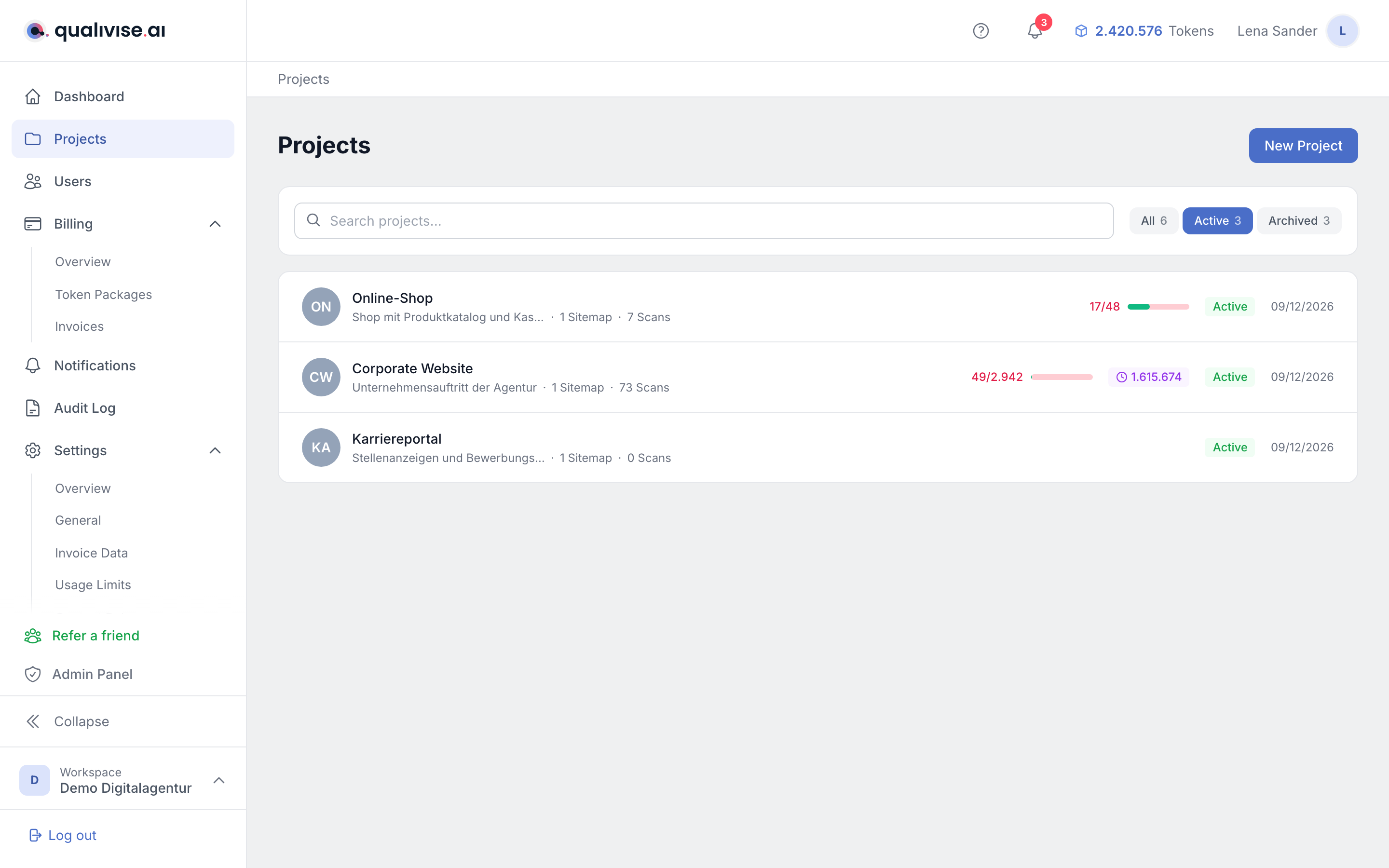
Create a project
- Enter a display name that you'll recognise in lists and selectors.
- Enter the base URL of the website (scheme and domain, optionally a path, depending on how your site is set up).
- The favicon is usually detected automatically and shown next to the project name, provided the URL is reachable.
Edit a project
- You can change name and URL if branding or domain change (mind the impact on existing sitemaps and profiles).
- Description - free text for internal notes, e.g. team, owners or hints about the site structure.
Good naming
- Use unambiguous names when you maintain several similar sites (e.g. "Shop DE" and "Shop AT").
- Avoid purely technical codes without context if several people in the workspace will read them.
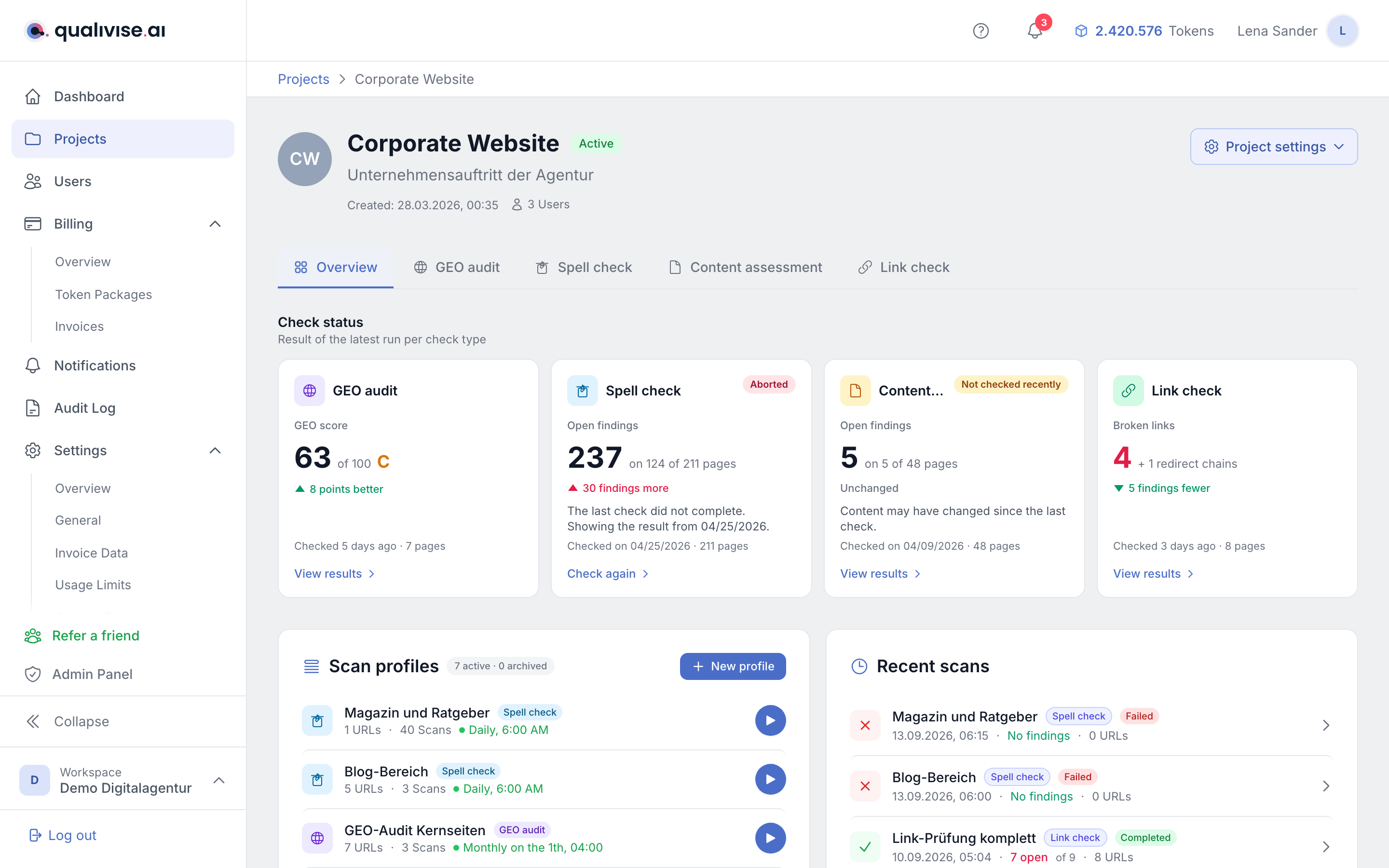
Check status on the project overview
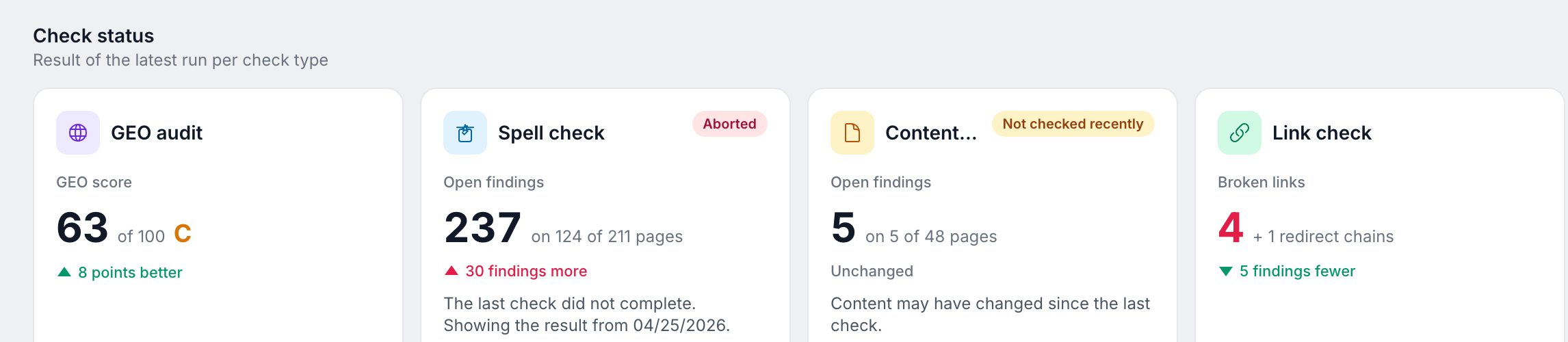
The project overview starts with the check status section: one card per scan type showing the result of the latest check. The card states which situation the type is in - no scan profile created yet, all profiles archived, check running, last check cancelled or a result available - and links to the matching next step.
- Every scan type enabled for the project also gets its own tab next to the overview with the details for that type.
- Scan types that are not enabled stay visible but move behind the usable cards.
- A staleness hint appears when the last check is a while back: after 30 days for GEO audit and link check, after 90 days for spell check and content assessment. The shorter period applies where the situation shifts without changes of your own - visibility in AI systems and the state of external links.
Open the project settings
At the top right of the project detail page you'll find the labelled Project settings button (gear). Its menu leads to three areas:
- Settings - master data, scan-type enablement, members and the danger zone at
/app/projects/:projectId/settings. - Scan profiles - management of this project's profiles.
- Content rules - project-specific rules for the content assessment.
The actions Archive, Reactivate and Permanently delete are not in the menu but in the danger zone at the end of the project settings page.
Archive
- Projects you don't need for the moment should be archived rather than deleted, unless deletion is explicitly intended.
- Archived projects are usually read-only: master data can no longer be changed and the UI makes that clear.
- All active scan profiles of the project are set to status archived and are therefore no longer available for scheduled runs.
Reactivate
- Bring a project back from the archive when the website should be checked again.
- After reactivation, check URL, sitemap and scan profiles to make sure everything still matches the current site.
Caution: Reactivation sets all archived scan profiles of the project back to active - including ones you deliberately archived individually beforehand. Those profiles then run again on their schedules and consume tokens. Review the profile list right after reactivation and archive any profile you no longer want.
Permanently delete
Projects can be permanently deleted by workspace administrators (roles OWNER and ADMIN). This action cannot be undone and is deliberately distinct from "archive".
Who is allowed to delete?
- Only members with the Owner or Admin role see the button in the danger zone on the project settings page.
- Members and read-only users have no access to this function.
Preconditions
- No scan in status
RUNNING,PENDINGorRESERVEDmay be active. The button stays clickable in that case; the request is rejected server-side and the UI shows an error message. Cancel the scan first or wait until it has finished.
What is deleted?
- The project itself (name, URL, favicon, notes, colour)
- All sitemaps and their analysis data
- All scan profiles including assigned URLs and schedules
- All scans of the project including findings, scan results, preflight checks and quick checks
- Token reservations and project-specific guardrail policies
- Content assessment rules and project-specific rule overrides
- Project-specific ignore-list entries
- Project-specific notification configurations
- Project memberships (the user accounts themselves are kept)
- The file attachment of the project favicon in storage
What is kept?
- Token billing data (
TokenUsagecontinued withprojectId = null) - so your consumption and invoice history stays consistent. - Audit-log entries for the project - the events
project.delete.requestedandproject.delete.completed(orproject.delete.failed) are kept in an audit-proof manner. - Anonymised platform statistics: the project's KPIs (number of scans, checked URLs, found / fixed findings) are written as an anonymous entry to the platform KPI journal before deletion, so that public live statistics on the landing page stay consistent.
Process
- Open
/app/projects/:projectId/settingsvia Project settings and choose "Permanently delete" in the danger zone. - In the confirmation dialog read the notes and confirm with "Permanently delete". If you're unsure: cancel and use "Archive" instead.
- The platform starts the deletion in the background. You're redirected back to the projects overview and see a hint toast.
- Once the deletion completes, all workspace members receive an in-app notification (bell icon top right).
- On failure you receive an error notification; a watchdog reports automatically if the process hangs for more than 15 minutes.
Relationship with sitemaps and scans
- Sitemaps and scan profiles are always tied to a concrete project; switching the project switches the context.
- Scans appear in the history with a reference to project and profile so you can attribute results later.
FAQ
Why is no favicon shown?
- The URL might not be reachable, or the server doesn't provide a standard favicon.
- Check the base URL and whether redirects or protection mechanisms block the request.
Can I duplicate a project?
- If the UI doesn't offer duplication, create a new project with the same URL and copy the settings manually from the documentation.
Notes
- A project should represent one website - mixing several independent domains makes evaluation and token attribution harder.
- Before archiving: briefly check whether running scans or scheduled jobs still need to be considered.